Google Ads Auto-Apply Recommendations: What to Review Before You Turn Them On
A Google Ads account can look unchanged at first glance. The campaigns are still there. The daily budgets have not moved. The ads still point to the same landing pages.
Then search terms drift, bidding behavior changes, or lead quality starts moving in the wrong direction.
One place to investigate is the account’s auto-apply history. Not because Google secretly enables every recommendation. The standard auto-apply flow requires someone to enroll the account and select recommendation types. But once those settings are active, eligible changes can apply regularly without a person approving each one at that moment.
That makes auto-apply a governance decision, not a convenience toggle.
What Are Google Ads Auto-Apply Recommendations?
Auto-apply recommendations let an advertiser subscribe an account to selected recommendation types so Google Ads can apply eligible changes automatically.
Google groups the settings into bundles such as maintaining ads and growing the business. Advertisers can choose a bundle or select individual recommendation types. The exact menu can change as Google updates the product.
This is different from opening the Recommendations page and manually accepting one suggestion. Manual application is a one-time decision. Auto-apply creates an ongoing subscription at the account level.
Google says advertisers can review queued recommendations, dismiss ones that do not fit, inspect recent activity, and turn subscriptions off. Its developer documentation also exposes recommendation subscriptions for supported types, which makes the core behavior explicit: a recommendation type is enabled, and eligible recommendations of that type may then apply.
Sources: Google Ads auto-apply overview, auto-apply management instructions, and Google Ads API recommendation documentation.
Does Google Turn Auto-Apply On by Default?
The standard auto-apply recommendations workflow requires account-level enrollment.
That distinction matters because the older outline for this article treated auto-apply as a hidden default. Google’s current documentation describes an opt-in process: an advertiser selects recommendation bundles or individual types, saves the settings, and can later verify who enrolled the account.
If nobody knows why auto-apply is active, check the records before guessing.
Google documents two useful places:
- Auto-apply history shows when a recommendation subscription was enabled and recent activity.
- Change history can identify the user who enrolled the account and show individual account changes.
Manager accounts, former agencies, internal employees, and automated tooling can all be part of an account’s operating history. The audit question is not, “Who do we blame?” It is, “Which policy is active, who authorized it, and does it still fit the business?”
What Can Change Automatically?
Auto-apply can affect more than ad wording, depending on which recommendation types the account has enabled.
Google’s current API documentation lists subscription-supported types that include:
- Adding keywords
- Changing keyword match types
- Using broad match keywords
- Adjusting target cost per acquisition or target return on ad spend
- Moving to Maximize Clicks or other supported bidding approaches
- Opting into Search Partners or other search expansion features
- Using optimized ad rotation
- Improving responsive search ads and their strength
The user-facing list changes over time. For example, Google says the recommendation to add new responsive search ads was removed from auto-apply settings on January 26, 2026. That is a good reminder not to rely on a static checklist from an old agency audit.
Review the current settings inside the account and compare them with Google’s current documentation. A screenshot from last year is not an operating policy.
Why Can a Reasonable Recommendation Still Hurt Lead Quality?
A recommendation can be technically reasonable and still be wrong for a specific business because Google can optimize only toward the goals and signals available in the account.
Imagine two campaigns that both report a form submission as a conversion.
In the first campaign, most forms become qualified sales conversations. In the second, the forms are students, vendors, job seekers, or people outside the service area. If the account gives both forms the same value, the platform sees two conversions. The sales team sees one useful opportunity and one distraction.
That is why recommendation review starts with conversion quality.
Before expanding keywords, changing match types, or adjusting bids, ask:
- Which conversion actions are primary?
- Do calls and forms have qualification rules?
- Does the CRM send qualified-lead or revenue outcomes back into reporting?
- Is the campaign optimizing toward demand the business can actually serve?
- Are location, schedule, margin, and capacity constraints represented?
Our Google Ads guidance for local businesses makes the same point: clicks are not the outcome. Even lead count is incomplete when the account cannot distinguish a useful opportunity from noise.
Can Auto-Apply Increase the Campaign Budget?
Google states that auto-applied recommendations do not increase or change the campaign budget.
That does not mean the setting has no financial consequence.
A campaign can use the same daily budget very differently after a keyword, match type, targeting, or bidding change. The total budget may stay fixed while the searches, auctions, people, and outcomes funded by that budget change.
This is why “the budget did not increase” is not a complete audit result. A useful review also checks:
- Search-term quality
- Cost per qualified lead
- Qualified-lead rate
- Lead-to-opportunity rate
- Revenue or closed-won feedback
- Change history around any sudden performance shift
If the account tracks only clicks and raw conversions, it may miss the exact type of drift the business cares about.
How Do You Audit Auto-Apply Settings?
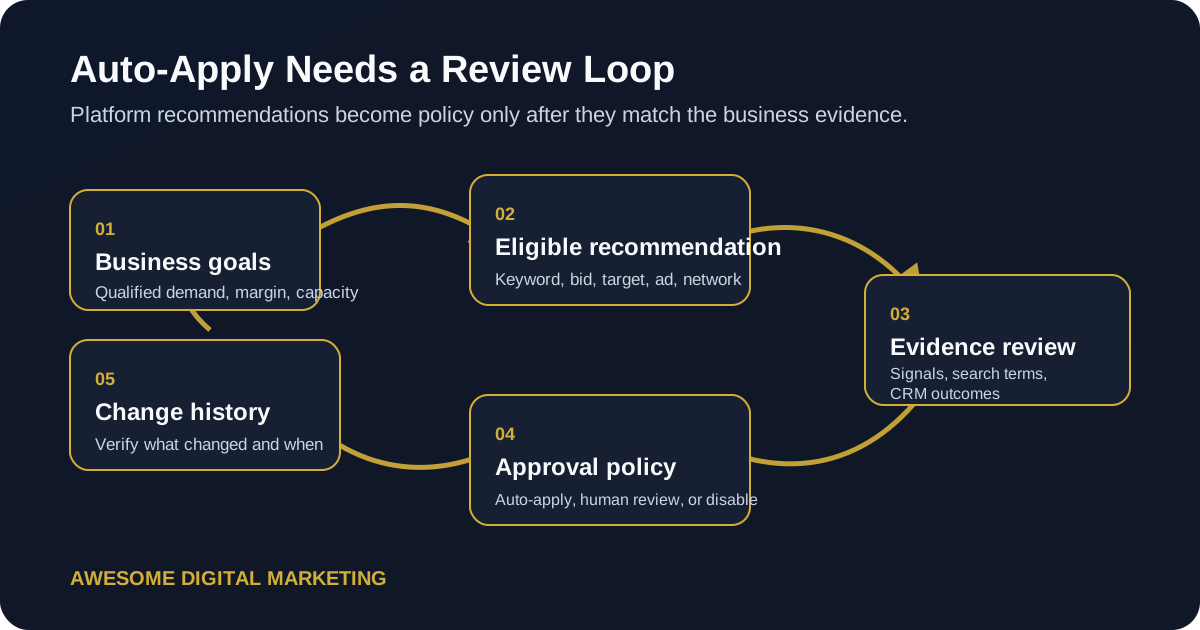
Audit the subscriptions, the applied-change history, and the business signals together.
Start with this sequence:
- Open Recommendations in the Campaigns menu.
- Open Auto-apply settings.
- Record every enabled recommendation type.
- Review the History tab for recent automatically applied changes.
- Open Change history when you need the enrollment user or more detail.
- Compare each enabled type with the account’s conversion goals and operating constraints.
- Check performance before and after material changes without assuming the change caused the result.
That final point matters. Timing is evidence, not proof. Lead quality can change because of seasonality, competitors, landing pages, offers, sales follow-up, tracking errors, or market demand. The auto-apply history helps narrow the investigation. It does not replace analysis.
This is one reason our APEX ad account audit process reviews recommendation settings alongside search terms, conversion definitions, landing-page fit, and CRM feedback.
Which Recommendations Should You Enable?
There is no responsible universal bundle for every account.
Use the consequence of the change to set the review policy.
| Change type | Review posture |
|---|---|
| Narrow maintenance or ad-quality changes | Consider auto-apply when brand controls, tracking, and review history are reliable |
| New keywords or match-type expansion | Require evidence that query quality and negative-keyword maintenance are strong |
| Bidding-strategy or target changes | Review against conversion volume, sales cycle, margin, and value accuracy |
| Search-network or targeting expansion | Confirm reach, geography, audience fit, and lead-quality monitoring |
| Any change in a weakly tracked account | Fix measurement before giving automation more authority |
The principle is simple: the less complete the feedback loop, the narrower the automation boundary should be.
When qualified outcomes flow back through CRM attribution, the account has better evidence. When every form fill looks identical, automation is operating with partial sight.
What Should a Paid Media Agency Do?
A paid media agency should act as the policy and evidence layer between platform recommendations and the client’s business goals.
That does not mean rejecting every Google suggestion. It means refusing to confuse a platform recommendation with a business decision.
A good review layer should:
- Define which recommendation types may apply automatically
- Require human approval for high-consequence changes
- Inspect history instead of relying on memory
- Connect ad-platform conversions to qualified pipeline
- Document why a subscription is enabled or disabled
- Revisit the policy when the offer, economics, or tracking changes
You can call that a firewall if the metaphor helps. The useful part is not the aggressive label. It is the rule set behind it.
Platforms are built to optimize campaigns at scale. Businesses still need someone accountable for defining what a good outcome means.
What Do Advertisers Ask About Auto-Apply?
Does Google Ads turn on auto-apply recommendations by default?
The standard auto-apply recommendations flow requires account-level enrollment. Google Ads records when auto-apply was enabled and which user enrolled the account, so advertisers can verify the source in auto-apply history and change history.
Can auto-apply recommendations increase a Google Ads budget?
Google states that auto-applied recommendations do not increase or change the campaign budget. They can still change how the existing budget is used by adjusting eligible keywords, match types, bidding settings, targeting, ads, or other selected recommendation types.
Where can advertisers review automatically applied changes?
Use Recommendations, Auto-apply settings, and the History tab to review subscriptions and recent activity. Google Ads change history can provide additional detail, including the user who enrolled the account.
Should every Google Ads auto-apply recommendation be disabled?
No. The right choice depends on conversion quality, campaign maturity, business economics, and the recommendation type. High-consequence changes deserve explicit review, while narrow maintenance recommendations may be reasonable with monitoring.
Where Should You Start?
Start by documenting the current settings before changing them.
Capture the enabled recommendation types, recent history, primary conversions, bidding strategy, and the account’s definition of a qualified lead. Then review the highest-consequence subscriptions first.
Do not disable everything because an article told you automation is dangerous. Do not enable everything because an optimization score says the account has room to improve.
Use the account’s evidence.
If recommendation settings are only one part of a larger visibility, tracking, or lead-quality problem, run the free Awesome.Digital AI Visibility scan and use the findings to identify the first system worth fixing.