Advanced GA4 Funnel Tracking: How to Measure the Entire Lead Journey
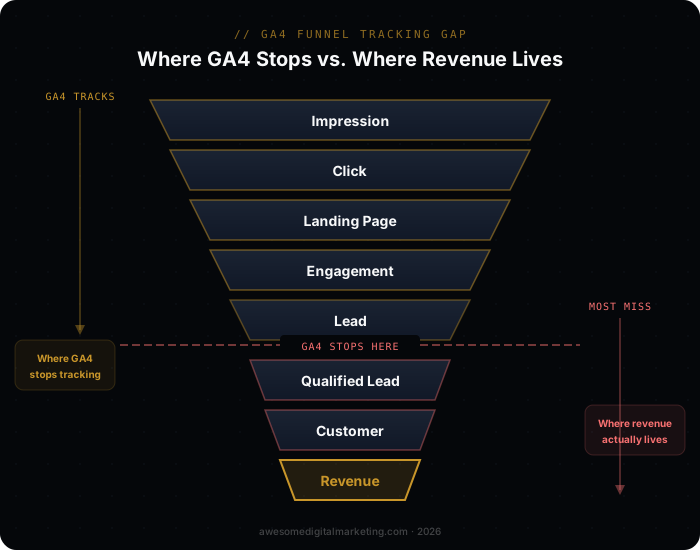
Most businesses track two things in Google Analytics: website visits and form submissions. That’s like measuring a baseball game by counting pitches thrown and runs scored — you’re missing everything that happens in between.
The real value of GA4 lies in its ability to track the entire lead journey, from first anonymous visit through closed deal. But almost nobody sets it up that way.
This guide shows you how.
Why Does Full-Funnel Tracking Matter?
Without full-funnel tracking, you can’t answer the questions that actually drive revenue:
- Which channels produce leads that close, not just leads that submit a form? This is critical for evaluating paid advertising performance.
- Where do qualified leads drop out of your pipeline?
- What’s the real cost per acquisition, not just cost per lead? An AI-powered marketing system connects these dots automatically.
- How long does your sales cycle actually take, and what shortens it?
GA4 was built to answer these questions. Its event-based model, user-scoped properties, and Measurement Protocol make end-to-end tracking possible without enterprise-grade tools. But you have to set it up deliberately.
What Makes GA4 Different for Funnel Tracking?
GA4 introduced several features that make full-funnel tracking practical for the first time in Google Analytics:
- Event-based data model. Everything is an event. No more shoehorning funnel stages into pageviews or goals.
- User properties. Attach persistent attributes (like lead status or customer segment) to individual users across sessions.
- Measurement Protocol. Send events to GA4 from your server, CRM, or any backend system — not just the browser.
- Explorations. Build custom funnel visualizations with flexible step definitions, segment comparisons, and elapsed time analysis.
- BigQuery export. Export raw event data for advanced analysis without sampling limitations.
The Core Funnel Model
Before touching any code, define your funnel stages. Here’s a model that works for most lead-generation businesses:
| Funnel Stage | GA4 Event Name | Trigger | Source |
|---|---|---|---|
| Visit | page_view | User lands on site | GA4 auto-collect |
| Engagement | qualified_engagement | 2+ pages or 30s+ on key page | GA4 tag (custom) |
| Lead Capture | generate_lead | Form submit, phone call, or chat | GA4 tag (custom) |
| Lead Qualified | lead_qualified | CRM marks lead as qualified | Measurement Protocol |
| Proposal Sent | proposal_sent | Estimate or proposal delivered | Measurement Protocol |
| Deal Closed | purchase | Deal marked as won in CRM | Measurement Protocol |
A few things to note:
generate_leadandpurchaseare GA4 recommended events. Using recommended event names unlocks built-in reports and predictive metrics.qualified_engagementis a custom event that bridges the gap between a casual visit and a real lead. Define the threshold based on your business — two pageviews, 30 seconds on a service page, or scrolling past the fold on a landing page.- The last three stages fire from your backend via Measurement Protocol — and the accuracy of that data depends on having a solid server-side tracking foundation. This is where most implementations stop, and it’s where the real value starts.
Implementation: Five Steps to Full-Funnel Tracking
Step 1: Set Up Client-Side Events
Start with the events you can track in the browser using Google Tag Manager or gtag.js.
qualified_engagement — Fire this when a user demonstrates real interest. Example GTM trigger: page depth greater than 1 AND time on page greater than 30 seconds on any page in your /services/ directory.
generate_lead — Fire on form submission, click-to-call, or chat initiation. Include parameters that help you segment later:
lead_source(organic, paid, referral)lead_type(form, phone, chat)service_interest(the page or service they inquired about)
Step 2: Capture the Client ID
Every GA4 user gets a client ID stored in the _ga cookie. You need this ID to connect browser-side events with server-side events later.
When a lead submits a form, capture the GA4 client ID and store it alongside the lead in your CRM. Most form handlers can read the _ga cookie value at submission time. The client ID format looks like this: GA1.1.1234567890.1698765432 — you want the last two number groups.
This is the critical link. Without it, your CRM events and your GA4 events live in separate universes.
Step 3: Configure Measurement Protocol Events
The GA4 Measurement Protocol lets you send events from any server to GA4 using a simple HTTPS request.
Here’s what a lead_qualified event looks like:
{
  "client_id": "1234567890.1698765432",
  "events": [
    {
      "name": "lead_qualified",
      "params": {
        "lead_id": "CRM-00542",
        "lead_source": "google_ads",
        "service_interest": "hvac_repair",
        "lead_value": 2500,
        "days_to_qualify": 3
      }
    }
  ]
}
You send this as a POST request to:
https://www.google-analytics.com/mp/collect?measurement_id=G-XXXXXXX&api_secret=YOUR_SECRETYour API secret is generated in GA4 under Admin > Data Streams > your stream > Measurement Protocol API secrets.
Step 4: Build the CRM Integration
The integration between your CRM and GA4 is where the funnel comes alive. When a lead’s status changes in your CRM, fire the corresponding Measurement Protocol event.
Map your CRM stages to GA4 events:
| CRM Status Change | GA4 Event | Key Parameters |
|---|---|---|
| New lead created | generate_lead (if not already fired client-side) | lead_source, lead_type |
| Lead qualified | lead_qualified | lead_value, days_to_qualify |
| Proposal/estimate sent | proposal_sent | proposal_value, service_type |
| Deal won | purchase | value, transaction_id, items |
| Deal lost | deal_lost | lost_reason, competitor |
Most CRMs support webhooks or automation triggers that fire when a record’s status changes. Point those webhooks at a simple server-side script that formats and sends the Measurement Protocol request. For a deeper look at how this connection works end-to-end, see our guide on CRM integration and closing the attribution loop.
Step 5: Validate the Full Funnel
Use the GA4 DebugView to verify events are arriving with correct parameters. Key things to check:
- Client-side events (
qualified_engagement,generate_lead) appear in real-time - Measurement Protocol events (
lead_qualified,proposal_sent,purchase) appear with the correctclient_id - Event parameters are populated and formatted correctly
- The same user shows both client-side and server-side events in their user timeline
QA Checklist
Before going live, verify each element:
| Check | How to Verify | Common Failure |
|---|---|---|
| Client ID captured on form submit | Check CRM record for GA client ID field | Cookie not read, field not mapped |
generate_lead fires on all conversion points | Submit each form type, click each CTA | Missed a form, chat widget not tagged |
| Measurement Protocol events arrive | GA4 DebugView with test client ID | Wrong API secret, malformed payload |
| User timeline shows full journey | GA4 Explore > User explorer | Client ID mismatch between browser and server |
| Event parameters populated | GA4 DebugView parameter inspection | Null values, wrong data types |
| Funnel exploration works | Build funnel in Explore with all stages | Events not marked as conversions |
How Do You Turn Funnel Data Into Actionable Insights?
Once the funnel is live, build these three reports:
1. Channel Quality Report
Create an Exploration with generate_lead as the entry point and purchase as the endpoint. Break down by lead_source. This shows you which channels produce leads that actually close — not just leads that fill out forms.
You’ll often find that your highest-volume lead source has your lowest close rate, and vice versa. This is the insight that changes budget allocation.
2. Pipeline Velocity Report
Use a funnel exploration with elapsed time between stages. This reveals:
- Average time from lead to qualified
- Average time from qualified to proposal
- Average time from proposal to close
- Where deals stall and for how long
Pipeline velocity is one of the most actionable metrics in sales, and most businesses have never measured it because their analytics stopped at the form submission.
3. Drop-Off Analysis
Build a closed funnel (require sequential steps) and look at where leads fall out:
- High drop-off between
generate_leadandlead_qualified= lead quality problem (targeting or messaging) - High drop-off between
lead_qualifiedandproposal_sent= sales process problem (follow-up speed or method) - High drop-off between
proposal_sentandpurchase= pricing or proposal problem
Each drop-off point suggests a specific fix. That’s the power of full-funnel visibility.
What Are the Most Common GA4 Funnel Tracking Mistakes?
Sending Measurement Protocol events without a valid client ID. If you can’t match the server-side event to a browser session, GA4 creates an orphaned user. Your funnel will show inflated stage counts and deflated conversion rates.
Using custom event names instead of recommended events. purchase unlocks built-in revenue reports and predictive audiences. deal_closed_won does not. Use recommended names when they exist.
Not setting event values. GA4’s revenue and value reports only work if you pass a value parameter with your conversion events. Always include the deal value on purchase events.
Forgetting to mark events as conversions. Events appear in GA4 automatically, but they don’t count as conversions until you explicitly mark them in Admin > Events. Do this for generate_lead, lead_qualified, and purchase at minimum.
Over-engineering the first version. Start with the core six events listed above. You can add micro-conversions, engagement scoring, and predictive segments later. Get the foundation right first.
Advanced Tip: BigQuery for Deep Analysis
GA4’s built-in reports are powerful but limited. For serious funnel analysis, enable the free BigQuery export and run SQL queries against your raw event data.
With BigQuery, you can:
- Calculate exact conversion rates between any two events with custom date ranges
- Build cohort analyses grouped by acquisition channel, campaign, or landing page
- Measure true time-to-conversion without GA4’s sampling limitations
- Join GA4 data with CRM exports for complete revenue attribution
- Build custom dashboards in Looker Studio powered by live BigQuery data
The BigQuery export is free for most businesses (Google Cloud’s free tier covers up to 10 GB of storage and 1 TB of queries per month). It’s the most underutilized feature in GA4.
Final Thoughts
The gap between “we track leads” and “we track the full lead journey” is where most marketing budgets get wasted. You optimize for clicks because that’s what you can see. You optimize for form submissions because that’s where your tracking stops. But the decisions that actually move revenue — which channels produce deals, where qualified leads drop off, how long your pipeline takes — require data from beyond the browser.
GA4 and Measurement Protocol make this possible without enterprise tools or six-figure analytics budgets. The implementation takes a few days of focused work. The payoff is permanent visibility into what’s actually driving your business.
See where you stand — check your AI visibility score.